

Mexty Chat
The AI creation hub & home screen
What you can do here
Mexty Chat is where you create everything. Describe what you want in plain language — "a 5-question quiz on workplace safety", "an onboarding course for new sales reps" — and an AI agent builds it for you. It's also your home screen, so this is where most sessions begin.
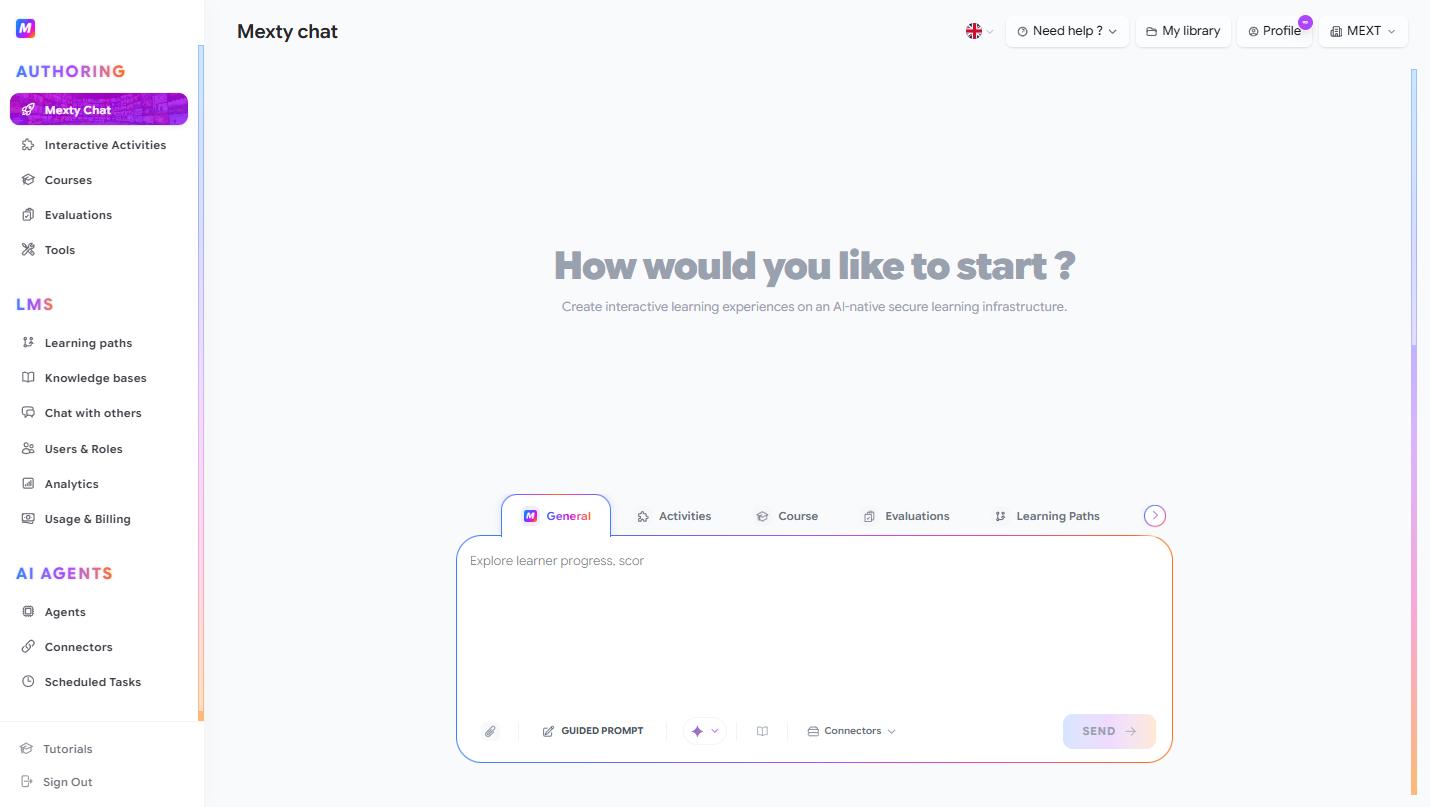
Create something from a prompt
- Open the chat — it's the first thing you see after logging in, or go to
/lms/chat. - Describe what you want to build. Be specific about the audience, topic and format, e.g. "Create an interactive quiz with 6 multiple-choice questions about GDPR basics for new employees."
- Press Send. Mexty generates the content and opens it in the editor.
- Keep chatting to refine it — "make question 3 harder", "add a final summary slide".
The more context you give (who it's for, the tone, the length, must-include points), the closer the first draft lands.
Point your request at the right agent
The tab bar above the input lets you aim your request at a specialist instead of a generalist:
- General — not sure which to pick? Leave it here and Mexty routes the request for you.
- Activities — quizzes, games, branching scenarios.
- Course — full multi-slide courses.
- Evaluations — scored assessments.
- Learning Paths — multi-course programs.
- …plus Users & Roles, Analytics, Custom Agents and Agent Builder.
Choose the tab that matches your goal before sending — it sharpens the result. The placeholder text changes to hint what each agent is best at.
Get step-by-step help with Guided Prompt
If you're not sure how to phrase your request, click ✏️ Guided Prompt. Instead of a blank box you get a short form that walks you through audience, topic, format and constraints, then Mexty assembles the prompt for you. It's the easiest way to get strong results in your first few sessions.
Ground the AI in your own material
To make the output reflect your content rather than generic knowledge, use the toolbar inside the input box:
- 📎 Attach files — drop in a PDF, deck or document to use as source material for this request.
- 📖 Knowledge bases — pick a saved knowledge base so every reply in the session is based on those documents.
- 🔍 Web search — turn on when you want current information pulled from the web.
- 🔌 Connectors — give the agent access to a connected service (e.g. Google Calendar, Gmail) for this task.
- ✨ Model selector — switch the underlying AI model if you have a preference.
Start from an existing activity
Scroll to Featured Activities below the input to browse ready-made examples. On any card, click 👁 Preview to try it, or 🚀 Start with this block to clone it and make it your own — much faster than starting from scratch.
Turn a document into interactive content
In the Static Content → Interactive Experience section you can jump straight into a conversion flow — PowerPoint → slides, PDF → slides, or Document → podcast. See the Tools guide for the full set.
Tips
- Iterate in small steps; one instruction at a time gives the AI a cleaner target.
- Save material you reuse often as a knowledge base so you don't keep re-uploading the same files.
- Use My library in the top bar to find anything you've created.