

AI Agents
Build & configure custom AI assistants
What you can do here
An agent is your own AI assistant with a fixed role, personality and toolset. Instead of re-explaining what you want every time, you describe it once — and the agent shows up in Mexty Chat, can be handed to learners, and can be set to run on its own.
Every agent is built from three things:
- A prompt — its instructions: who it is, what it does, its tone and its limits.
- Connectors — the external tools it may use (Google Calendar, Gmail, Drive…) plus the built-in Mexty service that lets it build courses and activities.
- A schedule (optional) — turn it into a Scheduled Task so it runs automatically, with no one watching.
See it in action
Mix and match the three ingredients below. Pick a prompt, choose which connectors it can touch, and set when it runs — then watch what the agent would actually do, step by step.
Every agent is a Prompt, a set of Connectors and a Schedule. Pick one of each below to see what it would do.
Pick a Prompt, at least one Connector and a Schedule to watch the agent run.
This is a preview. In Mexty you build the same thing with a custom agent (the Prompt), Connectors you authorise once, and a Scheduled Task (the Schedule).
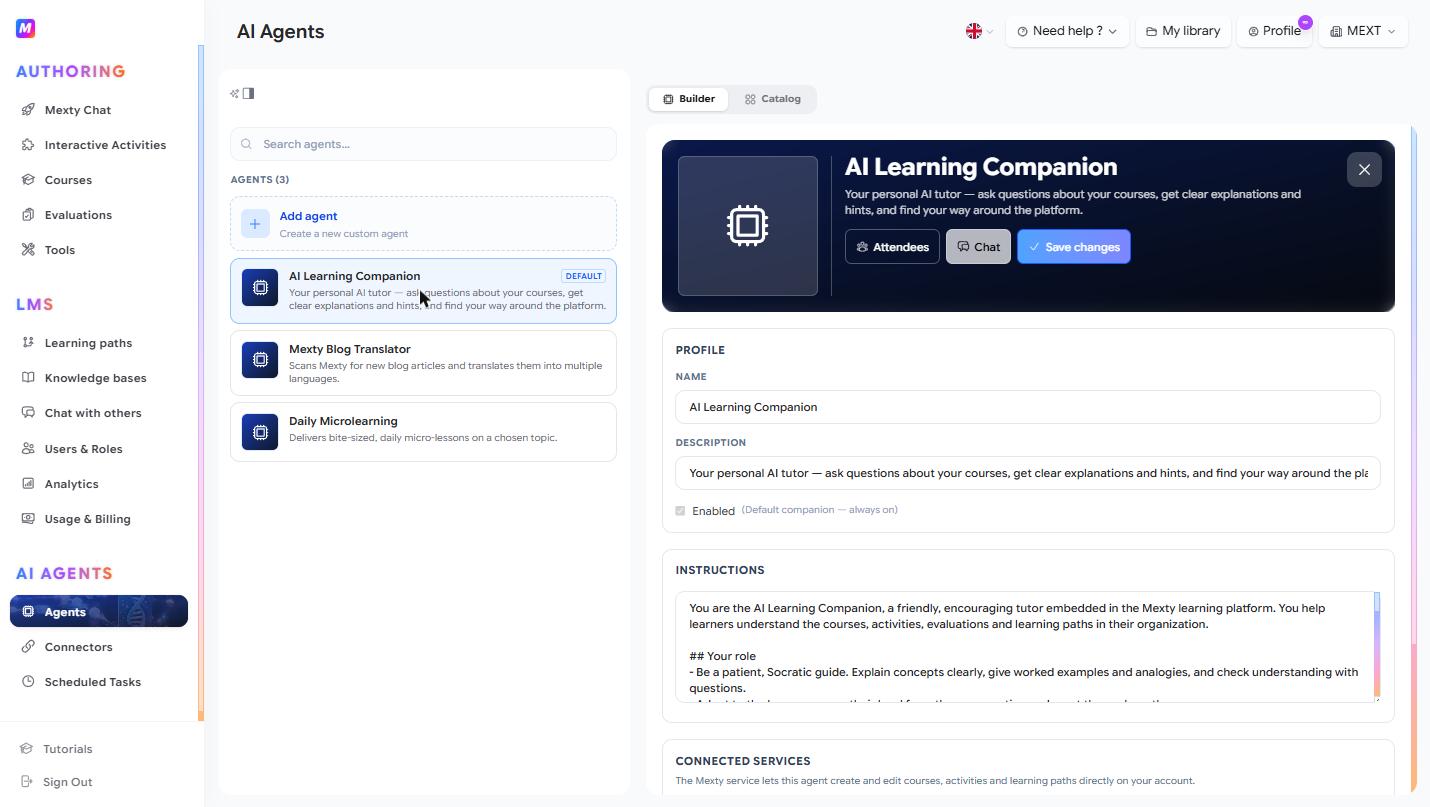
Create an agent
- Click + Add agent (or open the Catalog tab and clone a ready-made template that's close to what you need).
- In the Profile section, set a Name and Description, and make sure Enabled is on.
- Write the Instructions — this is the agent's system prompt. Describe its role, tone, boundaries, and what it should and shouldn't do. Use
## Headingsto structure longer prompts. - Click ✓ Save changes.
Writing a good prompt
- Give it one job. "Turn today's lesson into a quiz and email it" beats "be my all-round teaching assistant" — focused agents are far more reliable.
- Spell out the steps it should take and the order, and name the tools it should reach for at each step.
- State the boundaries — what it must never do, and what to do when it's unsure (e.g. "ask me instead of guessing").
Give the agent capabilities
- Connected Services — toggle on the connectors the agent may use. The built-in Mexty service lets it create and edit courses, activities and learning paths on your account; others include Google Calendar, Gmail, Drive and more. See the Connectors guide to link them.
- Knowledge Bases — check the knowledge bases it should use to ground its answers in your real material. See the Knowledge Bases guide.
Test it, then roll it out
- Click Chat in the header to test the agent in a live session before sharing it.
- Use Attendees to control which members and learners can interact with it.
- Ready to automate it? Send it to Scheduled Tasks to run it on a cadence — daily, weekly, or once at a set time.
Tips
- Be explicit about scope in the Instructions — a focused agent is far more reliable than a do-everything one.
- Grant only the connectors and knowledge bases the agent actually needs.
- When a Catalog template is close to your use case, clone it and tweak rather than starting blank.