
Authoring/lms/evaluations
Evaluations
Scored skill assessments & tests
What you can do here
Assemble assessment blocks into a single scored, graded experience — a test or skills check made of quizzes, hotspots, branching scenarios and more.
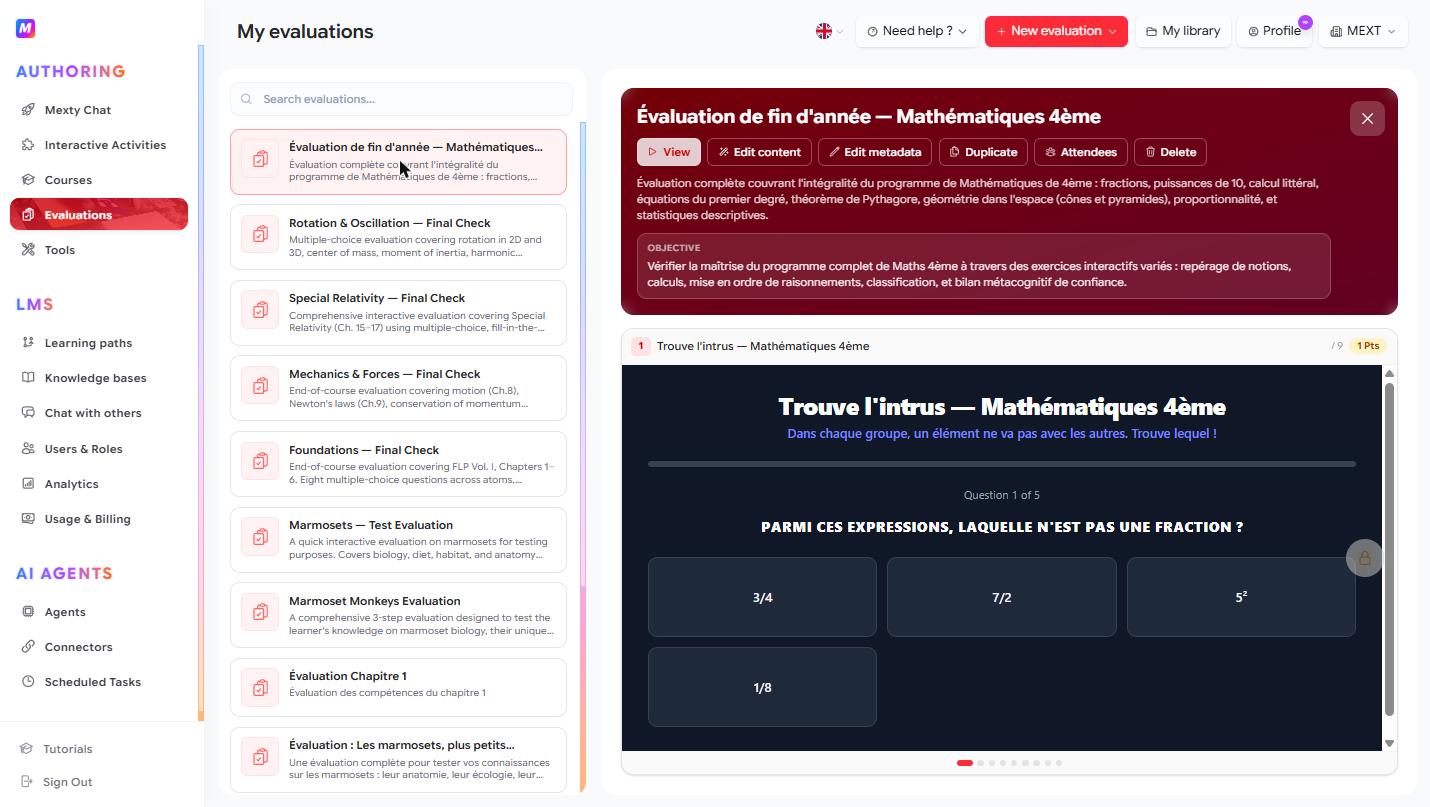
Create an evaluation
- Click + New evaluation, or describe it in the AI chat — "a 10-question skills assessment on basic Excel, with branching for wrong answers."
- It opens in the Evaluation Editor.
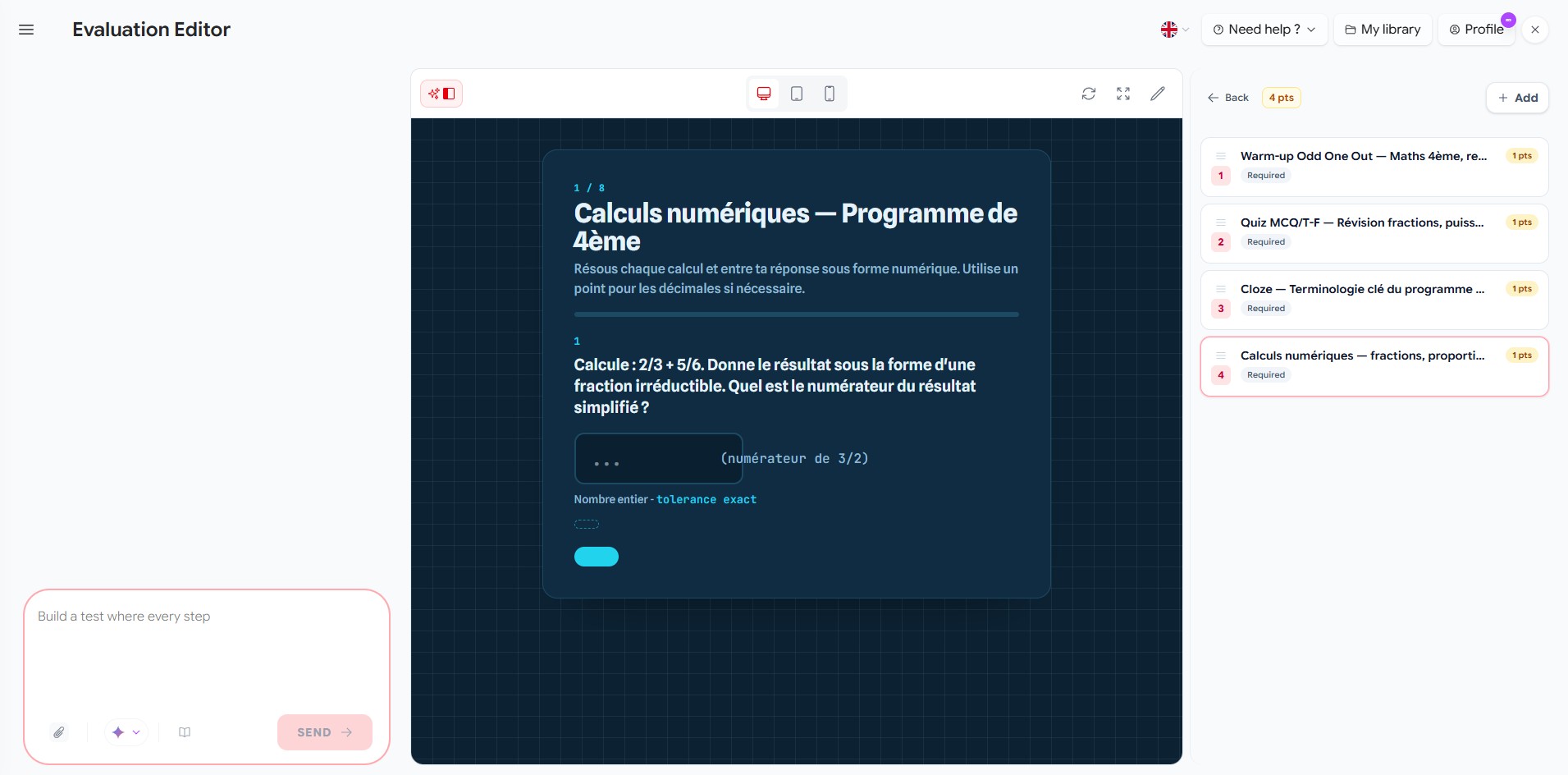
Add assessment blocks
- Click + Add (right panel) to open the block catalog.
- Search and pick the blocks to include — for example:
- Reusable Quiz — MCQ, binary and short-answer questions.
- Hotspot — Click the Right Region — image labeling.
- Decision Path — Branching Scenario — case-study judgment.
- Exam Runner — Question Bank Test — randomized exam from a bank.
- Confidence Check, Categorize, Odd One Out, and more.
- Each block you click is added to the sequence. Reorder with the ↕ drag handle.
Prefer to describe it? Build the whole evaluation from the AI chat instead of picking manually.
Preview as you build
Select any block in the list to preview it in the center panel. Use the device toggles, refresh and fullscreen to check the learner experience before you assign it.
Set it up and assign it
From the preview panel:
- Edit metadata — title, description, objective and level. A clear objective tells learners (and you) exactly what's being assessed.
- Attendees — assign the evaluation and track who has taken it.
- View — run it as a learner.
- Duplicate / Delete.
Tips
- Mix block types to assess different skills — recall (quiz), judgment (branching), recognition (hotspot).
- Reuse blocks from your Activities library so the evaluation stays consistent with your training.
- Write the objective first; it keeps your block selection focused.