

AI Agents/lms/scheduled-tasks
Scheduled Tasks
Run agents automatically on a schedule
What you can do here
A scheduled task is an agent set to run on its own — no manual trigger, no one watching. You give it one agent, one instruction and a cadence; it wakes up, does the job, and goes back to sleep. It's the third ingredient of the agent configurator: the Schedule.
Typical uses:
- Every weekday at 7 AM, turn today's lesson into a short interactive game and email it to the class.
- Each Monday, compile a learner-progress report and send it to you.
- Nightly, translate new content into your learners' languages.
- Once, at a set date and time, publish a course you prepared ahead.
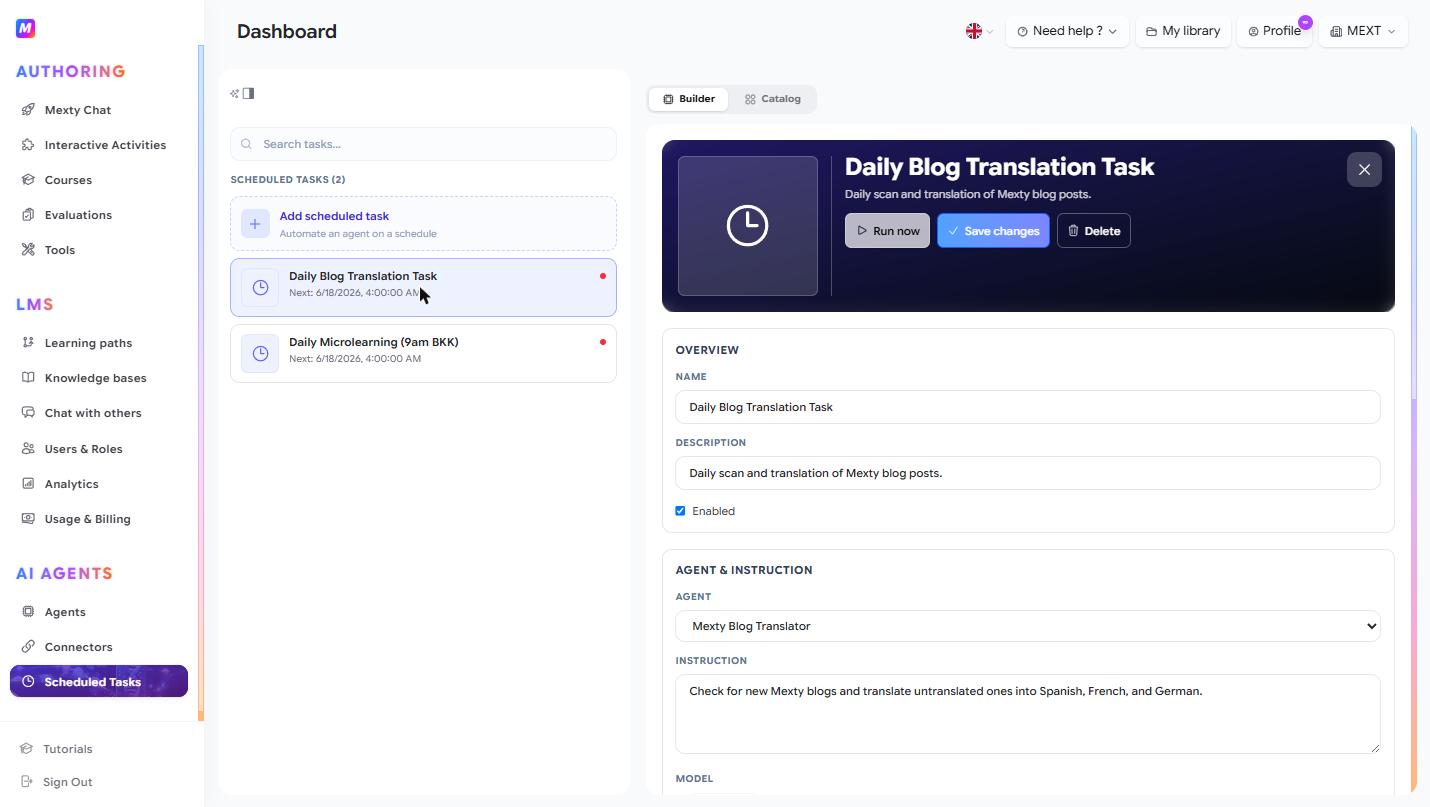
Create a scheduled task
- Open Scheduled Tasks and create a new task (start from the tab if a template fits).
- Choose the agent that should run. Make sure it already has the connectors and knowledge bases it needs to finish the job unattended.
- Write the instruction the agent runs each time.
- Set the schedule — a one-off date and time, or a recurring cadence (daily, weekly, or a custom interval).
- Save. It now runs on its own.
Task memory
Each task keeps a small memory it carries from one run to the next — so it can remember what it already did and avoid repeating itself (e.g. "don't email the same digest twice"). Mention in the instruction what's worth remembering.
Manage your tasks
- The Builder tab lists your tasks; use the search bar to find one.
- Open a task to edit its agent, instruction or schedule, or to pause or remove it.
- Run it once on demand to check the result before trusting it to the schedule.
Tips
- Make sure the chosen agent already has the connectors and knowledge bases it needs to finish the job unattended.
- Write the instruction as if it runs once — clear and self-contained — because no one is there to clarify mid-run.
- Start from a Catalog template for common jobs, then adjust the schedule to your cadence.
- Test the underlying agent in chat first; a task is only as reliable as the agent behind it.