

Interactive Activities
Build & edit embeddable activity blocks
What you can do here
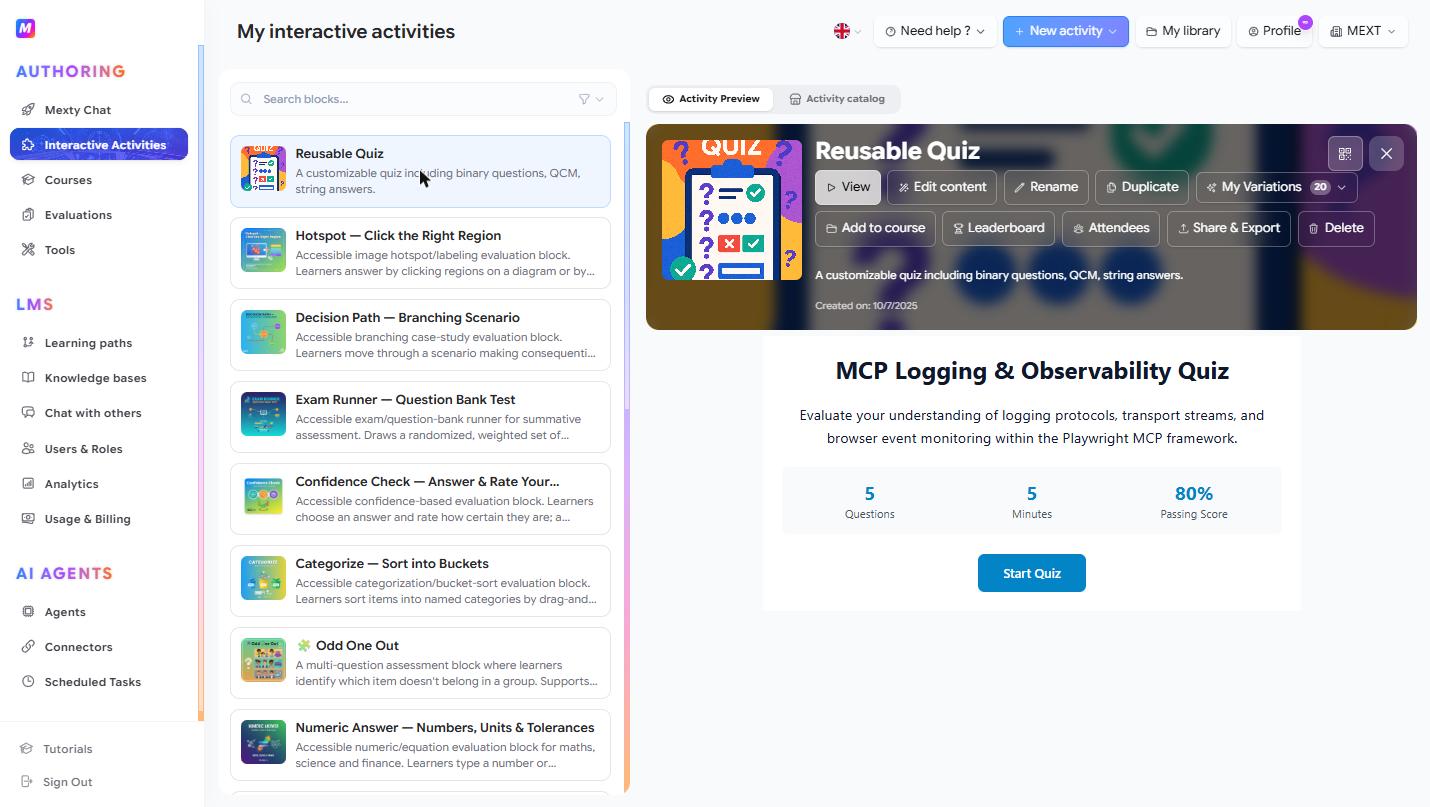
This is your library of interactive "blocks" — self-contained learning experiences like quizzes, games and scenarios that you can drop into courses or share on their own. From here you create them, edit them, and manage everything you've built.
Create a new activity
- Click + New activity (top right) and pick a starting point, or
- Describe what you want in the AI chat — e.g. "a drag-and-drop activity matching tools to their uses."
- The new block opens in the Block Editor, where you refine it.
Already have a block elsewhere? Use Import to bring it in.
Find and preview a block
- Type in the ("Search blocks…") to filter by name, or use the button to narrow by type or date.
- Switch between Activity Preview (list on the left, live preview on the right) and Activity catalog (full gallery grid) with the view tabs.
- Click any block to load it in the preview panel and watch it run live.
Edit a block — three ways
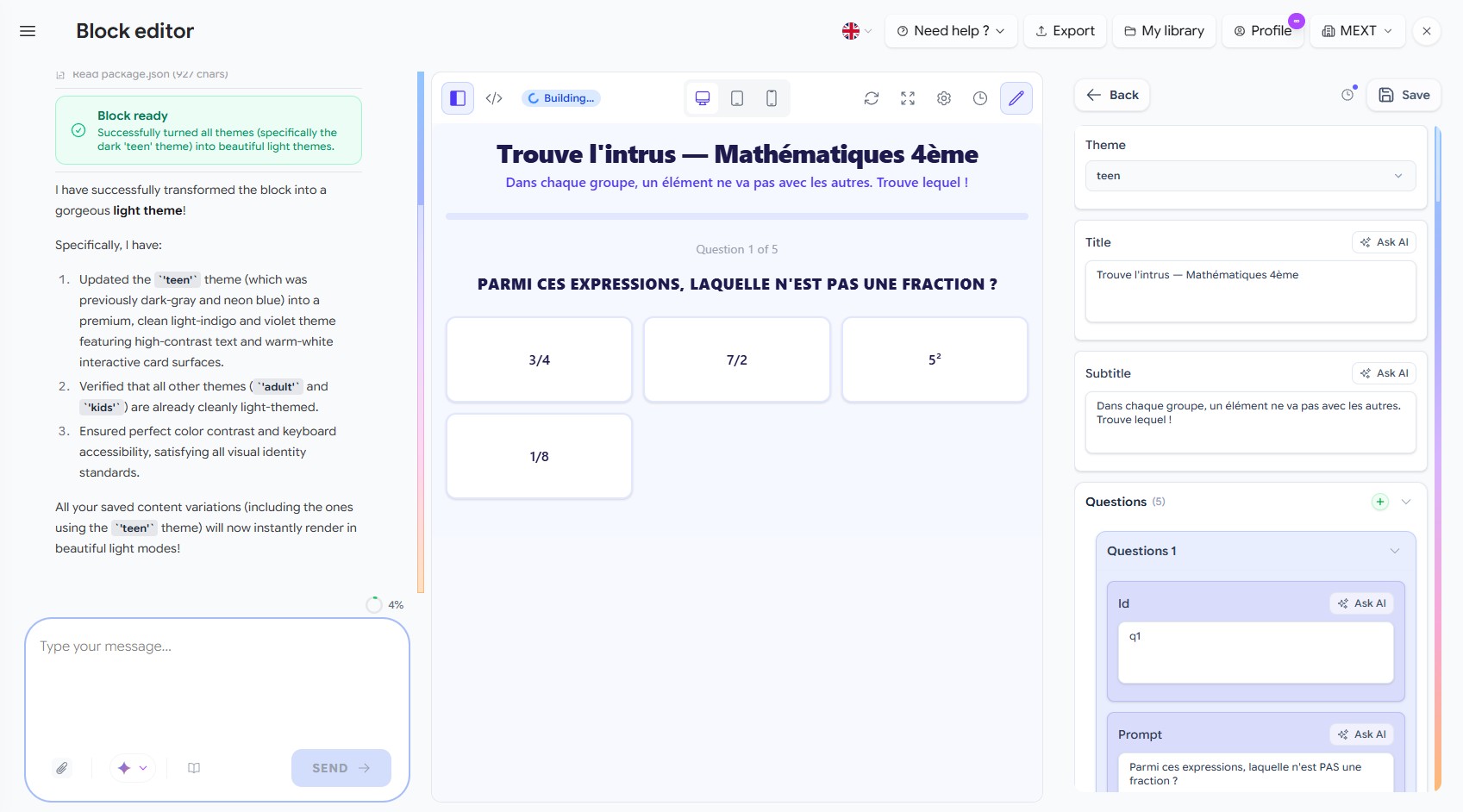
Select a block and click Edit content to open the editor. Use whichever method fits the change:
1. Tell the AI what to change
In the left chat panel, type an instruction — "add two harder questions", "switch the theme to dark blue" — and Mexty rewrites the block. Attach files or pick a knowledge base for context.
2. Edit properties directly
The Block tab on the right is a structured form for everything the block supports: questions, title, description, theme colors, on-screen labels, behavior toggles (show score, allow retake, shuffle…) and settings like time limit and passing score. Every field has an Ask AI button if you'd rather describe the change than type it.
3. Edit the code
For full control, click the toggle to open the in-browser code editor, change the React/TypeScript source, then Save. Use Exit Editor to come back.
As you work, use the center panel to preview on desktop / tablet / mobile, refresh, or go fullscreen to see exactly what learners get.
Set the block's details
Click ⚙️ Block Settings to set the title, type, level, estimated time and description. Use the AI Instruction field to add a standing rule that's applied every time the AI edits this block (e.g. "always keep the language at A2 level").
Manage and reuse a block
From the preview panel's action buttons you can:
- View it as a learner sees it, or Rename / Duplicate it.
- My Variations — review AI-generated variants of the block.
- Add to course — reuse the block inside a course.
- Leaderboard / Attendees — see scores and who attempted it.
- Share & Export — get a link, embed code or export.
- Version history (🕒 in the editor) — restore an earlier version.
Tips
- Build once, reuse everywhere: the same block can live in several courses and evaluations.
- Duplicate before big experiments so you always keep a safe copy.
- A clear AI Instruction keeps every regeneration on-brand and on-level.