

Connectors
OAuth & API integrations as agent tools
What you can do here
Connectors are how your agents reach the outside world. On its own, an agent can read your knowledge bases and build content on Mexty. Connect a service — Google Calendar, Gmail, Drive, Linear and more — and the agent gains tools it can call to read and act on real data, both in live chats and in automated Scheduled Tasks.
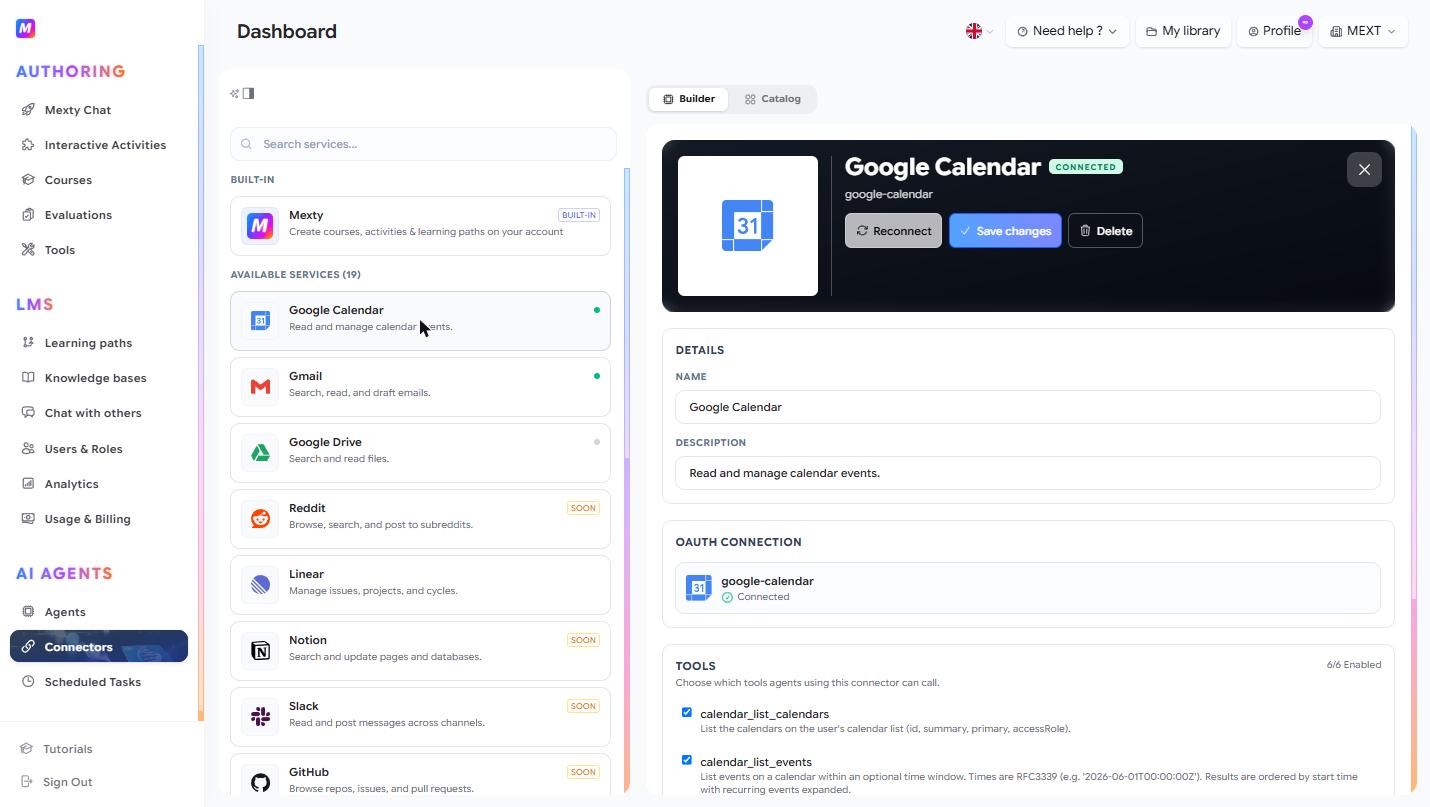
What a connector unlocks
Each connected service adds a handful of concrete actions, for example:
- Google Calendar — "What's on today's schedule?", create or move events, build a study plan around your week.
- Gmail — triage and summarise your inbox, draft replies, send a generated report or activity to a learner.
- Google Drive — pull source material from a doc, or save the agent's output back as a file.
- Mexty (built-in, no setup) — create and edit courses, activities and learning paths directly on your account.
Combine a few and the agent can chain them: read the calendar → build an activity on Mexty → email it to the class.
Connect a service
- Pick a service from the left panel (the search bar helps you find it). Anything marked SOON isn't available yet.
- In the right panel, click Connect / Authorize.
- Complete the OAuth flow in the popup and grant the requested permissions.
- The status changes to Connected — the service is now available to your agents.
The built-in Mexty connector needs no setup; every agent already has it.
Choose what agents can do with it
- Select a connected service.
- In the Tools section, check or uncheck the individual actions agents may call — for Google Calendar, that's things like list events, create event, update event and delete event.
- Click Save changes.
This gives you fine-grained control — for example, allow reading the calendar but never deleting events.
Use a connector with an agent
Open an agent (see the AI Agents guide), find Connected Services, and toggle on the connector. The agent can then call the tools you enabled. In a chat, the same services are available from the Services menu in the input toolbar.
Manage a connection
- Reconnect if access expires.
- Edit the Name / Description under DETAILS.
- Delete the connection to revoke access entirely.
Tips
- Enable only the tools you need — it's safer and keeps the agent's behavior predictable.
- If an agent suddenly can't reach a service, Reconnect to refresh the OAuth link.
- Pair connectors with clear agent instructions about when to use each tool.