

Learning Paths
Multi-step programs with branching
What you can do here
Combine your courses and evaluations into a guided program — a visual map where you decide the order learners follow, what unlocks when, and any deadlines along the way.
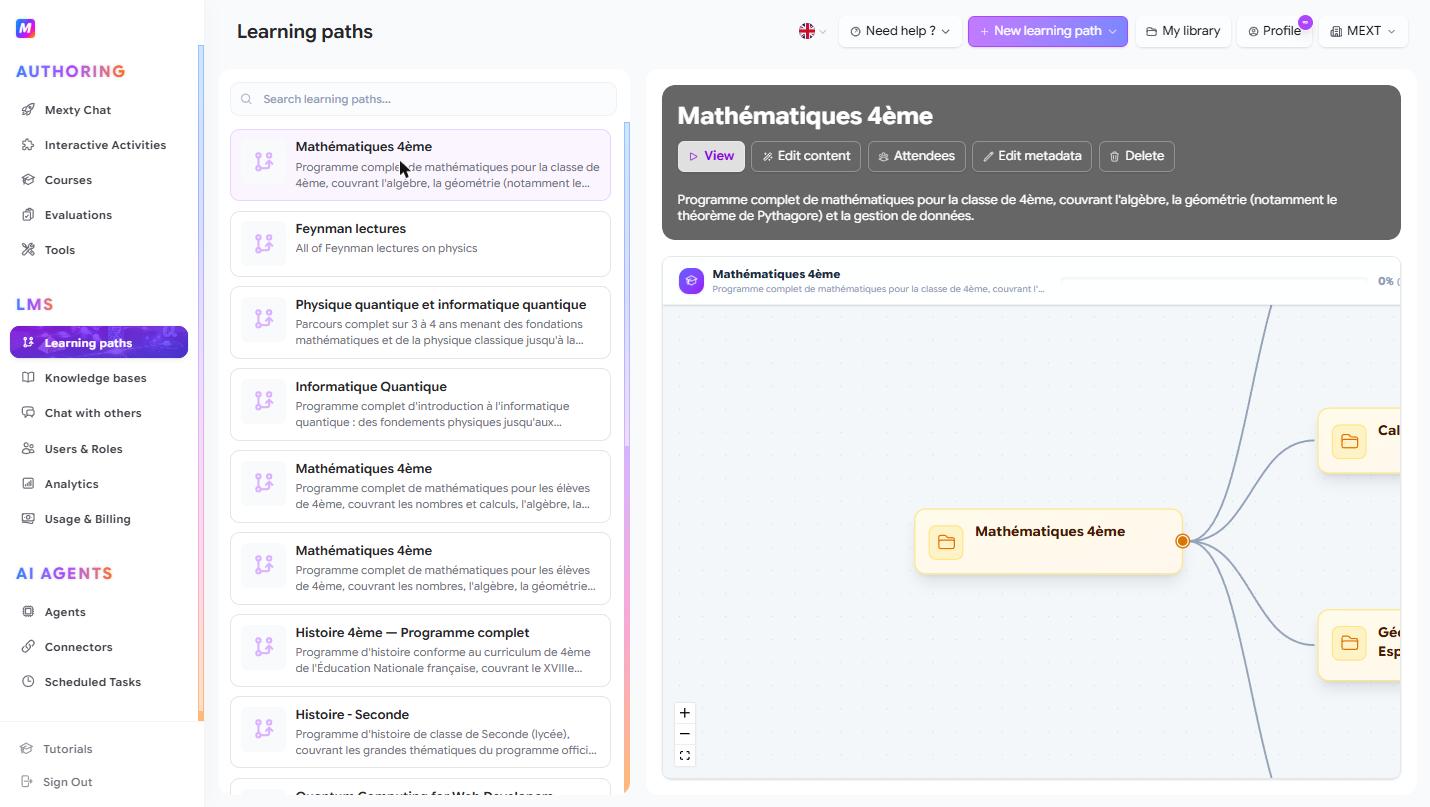
Create a learning path
- On the learning paths page, click + New learning path and give it a name.
- Select it and click Edit content to open the program editor.
You can also build one from a description: open the editor's AI chat and describe the program you want — Mexty generates the structure for you.
Build it in the editor
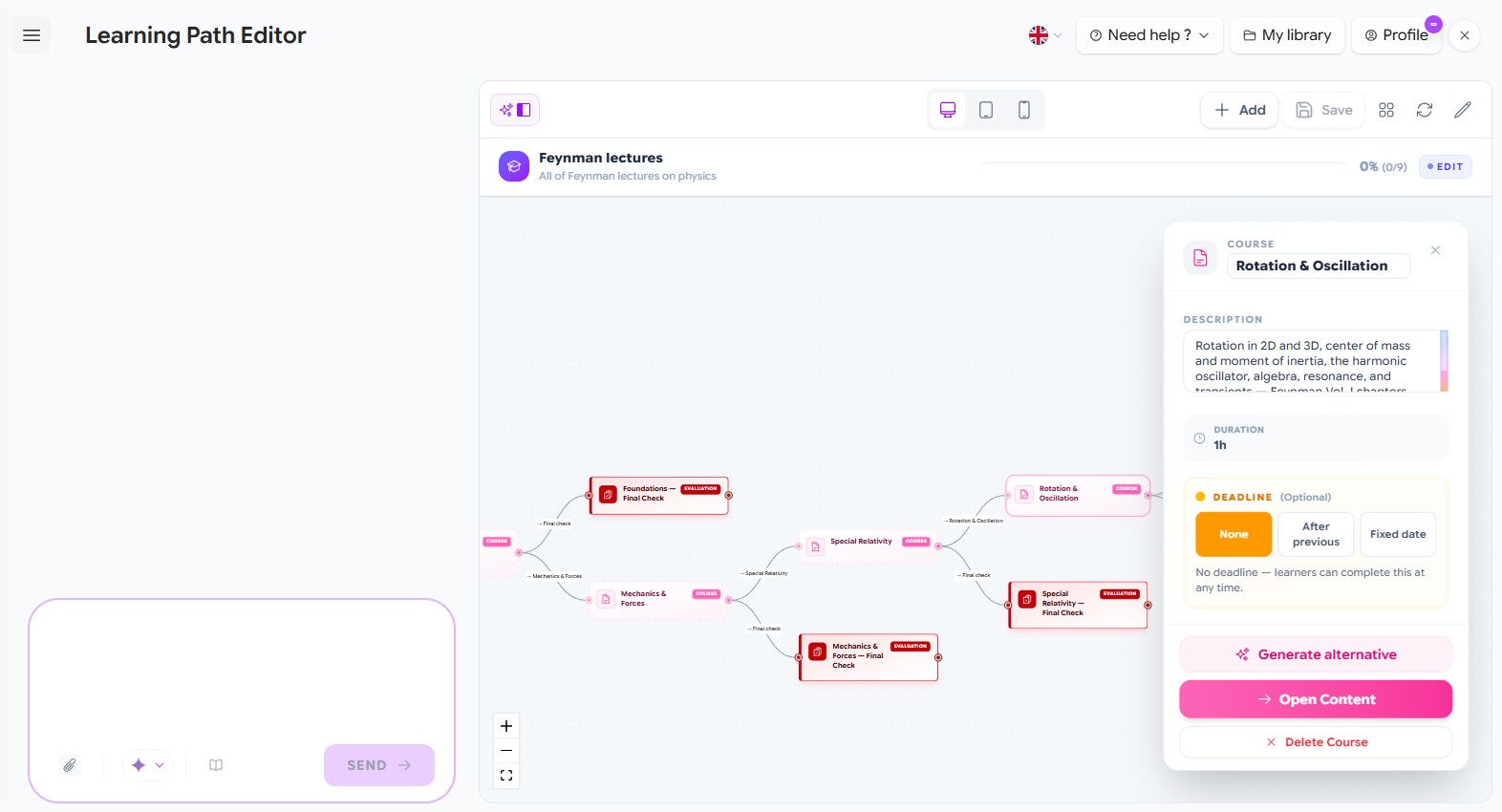
The editor has three areas: an AI chat on the left (toggle it with the chat button), a visual map of your program in the center, and a toolbar with Add, Save, Relayout and Refresh.
Add content to the map
Click Add and choose:
- Section — a folder to group related content.
- Course — pick one of your existing courses to place in the path.
- Evaluation — pick one of your existing evaluations.
- Everything must be completed / One must be completed — lock gates (see below).
- Zone — a labelled box to visually group part of the map (annotation only).
When you add a Course or Evaluation you can attach existing content, or leave it as a placeholder and click Generate … with AI to have Mexty create it — optionally describing the topic, audience and goals first. You can also use the AI chat to restructure the whole program or to generate an alternative version of any node.
Set the order and what unlocks
- Connect nodes with arrows to define the order learners move through.
- Drop a lock gate between content to control progression:
- Everything must be completed — every item feeding the gate must be finished before the next content unlocks.
- One must be completed — finishing any one of the incoming items is enough.
Configure a course or evaluation
Select a node to open its settings:
- Passing score (evaluations) — the score a learner needs to complete it, e.g. Score ≥ 70%.
- Deadline (optional, courses & evaluations) — choose None, After previous (a number of days after the preceding content), or Fixed date.
For a course node, click Edit course content (the pencil) to jump straight into the course editor.
Save and tidy up
- Save writes your changes — a dot marks unsaved edits.
- Relayout auto-arranges the map.
- Refresh reloads it.
- Preview on desktop / tablet / mobile.
Assign and manage
From a selected path's panel on the learning paths page:
- View — open it the way a learner sees it.
- Edit content — open the program editor.
- Attendees — enroll learners and see who's in the path.
- Edit metadata — update the name and description.
- Delete — remove the path.
Tips
- Generate a first draft from the AI chat, then refine the map by hand.
- Use sections to keep large programs readable, and zones to annotate.
- Add lock gates rather than leaving everything open, so learners follow the route you intend.
- Reuse existing courses and evaluations instead of rebuilding them inside the path.